Real-Time Data Sharing Between Excel Workbooks
Demonstrates how one Excel workbook publishes data that another Excel workbook receives in real time.
Files Used in This Example
Related Guides
Step 1: Publish Data
The publishing workbook adds a U.PUBLISH function that publishes the data as a report. The user specifies a report group and report name and references the range to publish.
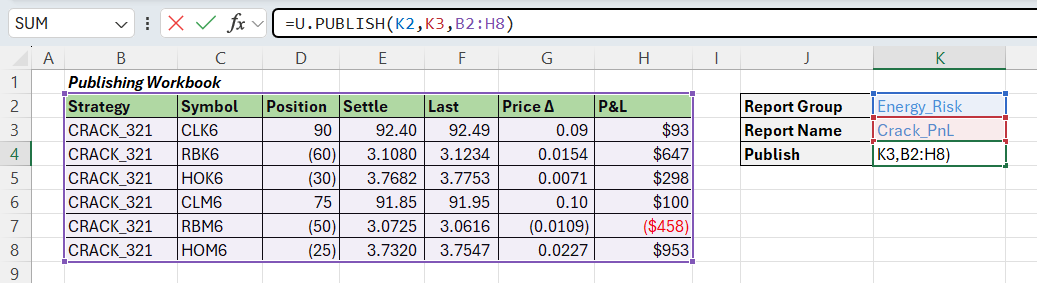
The report group and report name could be hard-coded into the formula, but here they are placed in labeled cells (K2 and K3) that are referenced by the U.PUBLISH formula.
What’s happening here?
Each time the data changes, U.PUBLISH recalculates and sends the data to a topic that includes the specified report group and report name. Other Excel instances (and custom apps) can subscribe to the topic to receive real-time updates.
Step 2: Subscribe to Data
The subscribing workbook adds a U.SUBSCRIBE function, specifying the report group and report name, to receive real-time notifications when the report changes.
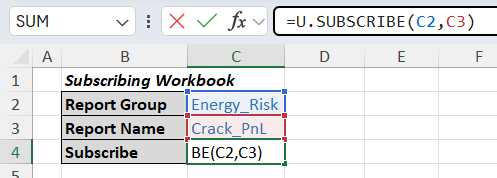
The subscribing workbook calling U.SUBSCRIBE in cell C4.
Step 3: View the Subscribed Data
The subscribing workbook adds a U.GET function that references the cell containing U.SUBSCRIBE to display the current report data.
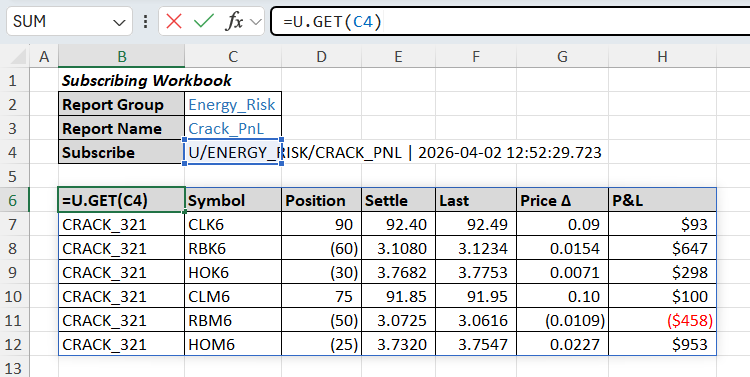
The subscribing workbook calling U.GET in cell C6, which references the call to U.SUBSCRIBE in cell C4.
U.SUBSCRIBE updates whenever a new version of the report is received. Because U.GET references the cell containing U.SUBSCRIBE, it recalculates and returns the latest data.
Result
The publishing workbook owns the report data. The subscribing workbook receives update notifications and displays the current report body without copying formulas or linking directly to the source file.